

- Schedule FA in ITR How to Declare Foreign Assets in India
- ITR-U - What is ITR-U Form, Eligibility & How to File Updated Income Tax Return?
- Revised Income Tax Return (ITR) - How to File Revised Return, Time Limit & Rules
- Section 80GGC - Deduction on Donations to Political Party
- Income Tax Notice: Types, Reasons & Reply Guide | Tax2win

How to Upload JSON on the Income Tax Department e-Filing Portal After Filing ITR-U via Tax2win
If you’ve prepared your Updated Return (ITR-U) and downloaded the jSON for ITR-U, the next step is to upload the generated JSON file on the Income Tax e-Filing portal and complete verification.
This step-by-step guide walks you through the entire process after downloading the jSON & logging in to your ITD account, to successfully e-verifying your return.
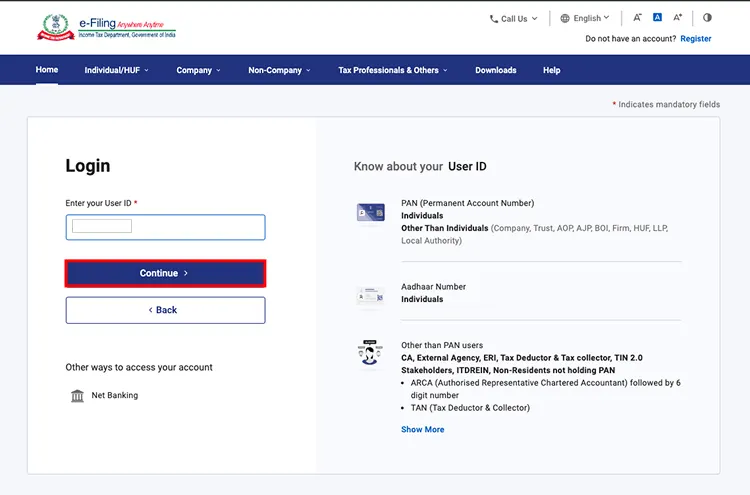
Step 1 – Login with your PAN (User ID)
Go to the Income Tax Department e-Filing portal.
Enter your User ID (PAN) and click Continue.
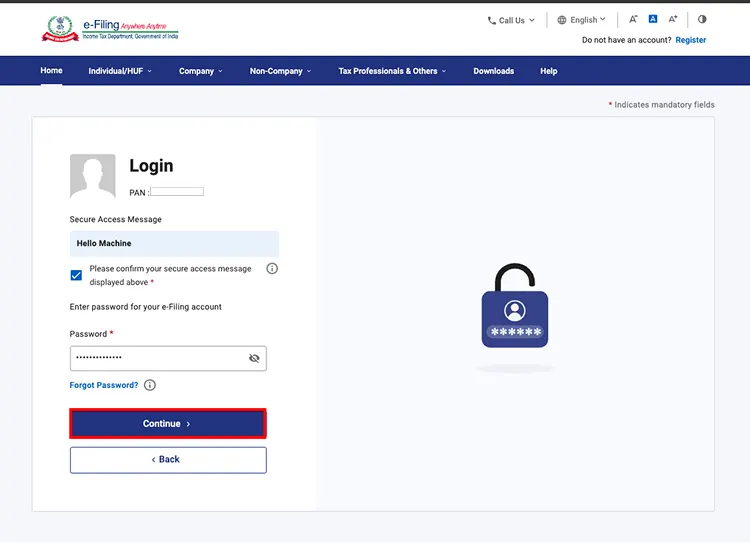
Step 2. Enter the Password
Confirm the secure access message, enter your password, and press Continue to log in.
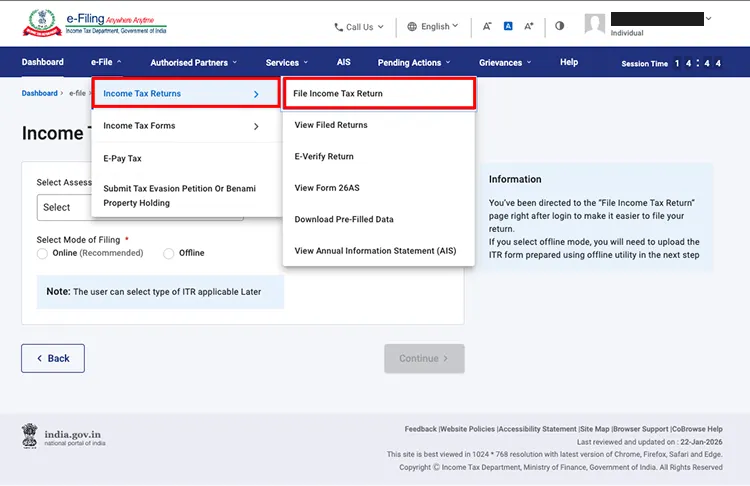
Step 3 – Navigate to File Income Tax Return
From the top menu, click:
e-File → Income Tax Returns → File Income Tax Return
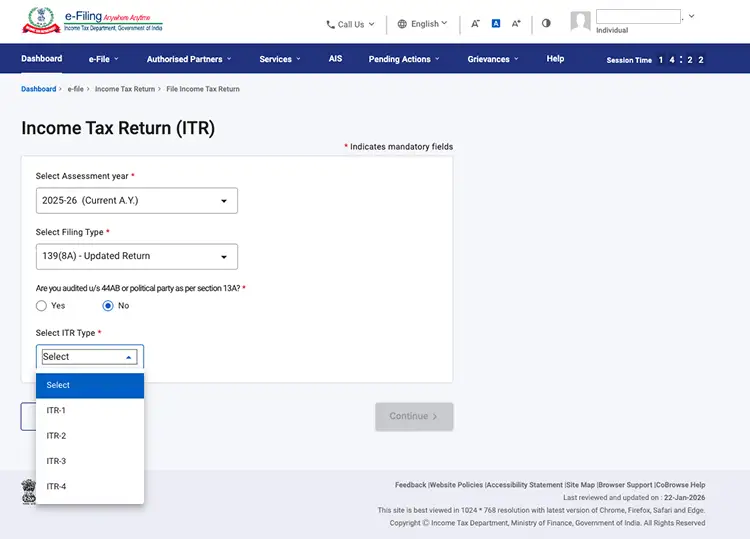
Step 4 – Select Assessment Year & Filing Details
Choose Assessment Year from the dropdown, 139(8A) – Updated Return under the select filing type dropdown, Audit & ITR Type. Then click Continue.
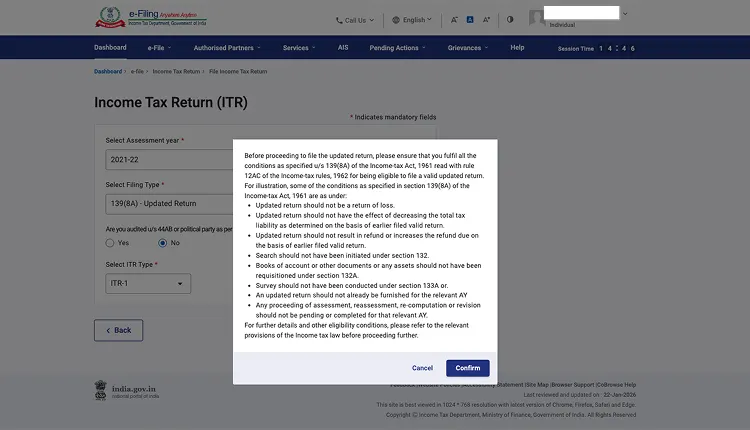
Step 5 – Confirm Updated Return Conditions
A confirmation pop-up explaining eligibility under section 139(8A) will appear.
Click Confirm to proceed.
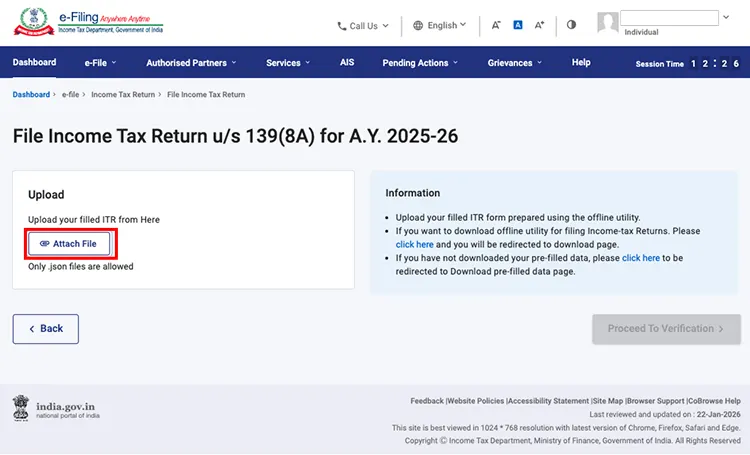
Step 6 – Attach the JSON File
Click Attach File and upload the JSON file downloaded from Tax2win.
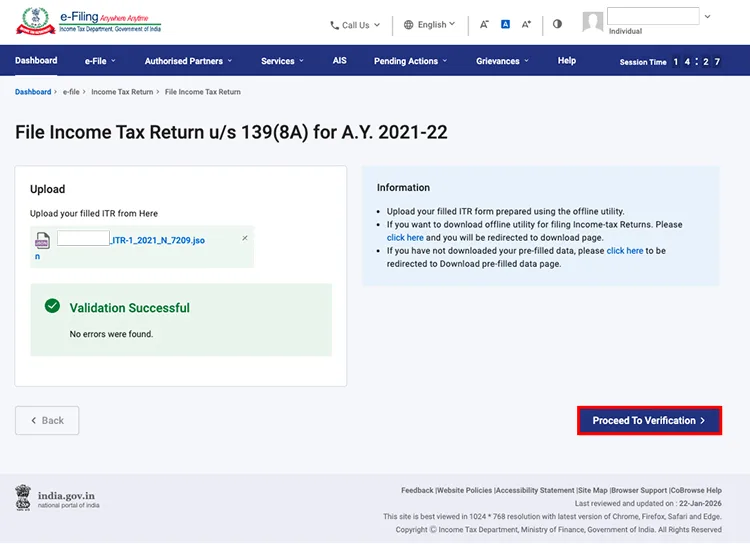
Step 7 – Validation Successful → Proceed
Once the file is uploaded, the system will validate it.
If no errors are found, click Proceed to Verification.
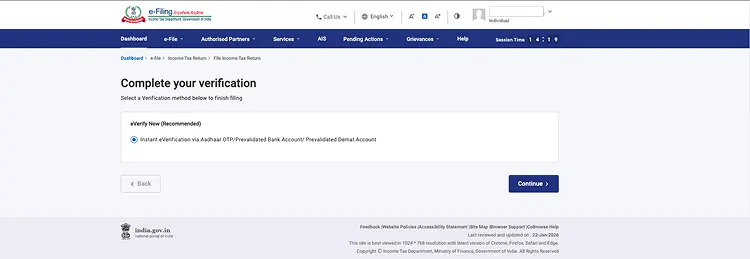
Step 8 – Continue to e-Verification
Select eVerify Now and click Continue to proceed with filing and e-verification.
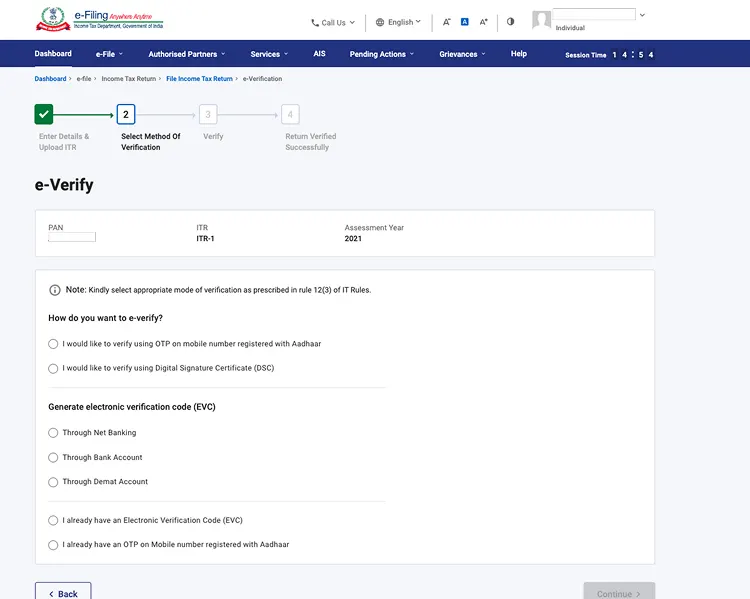
Step 9 – Choose OTP / Verification Method
Select your preferred option, such as:
- OTP on Aadhaar registered mobile, or
- Any other available EVC method.
Click Continue.
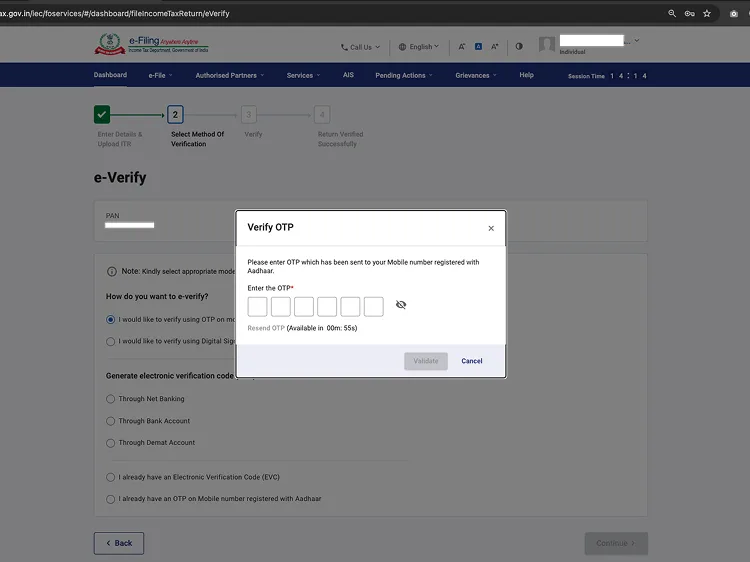
Step 10 – Enter OTP & Submit
Enter the OTP received on your registered mobile/email and validate it.
Upon successful submission, your ITR-U will be filed and verified.
Congratulations! You have successfully filed your ITR-U.